S3 Integration
Fire Insights allows you to access your files on S3. This page describes S3 integration of Fire.
We recommend controlling access to S3 using IAM Roles.
- Run Fire Insights on an EC2 machine with the appropriate S3 IAM Role.
- Run the EMR cluster with the appropriate S3 IAM Role.
If you are running Fire Insights on a independent machine, you can also use aws configure to set the AWS Access Key and Secret Access Key on the machine.
AWS CLI S3 Reference : https://docs.aws.amazon.com/cli/latest/reference/s3/ls.html
Installing aws cli
- http://docs.aws.amazon.com/cli/latest/userguide/installing.html
- pip install awscli –upgrade –user
Configuring AWS access key and password
Run aws configure to configure your credentials on the machine on which Fire Insights is running.
Access S3 in fire-ui
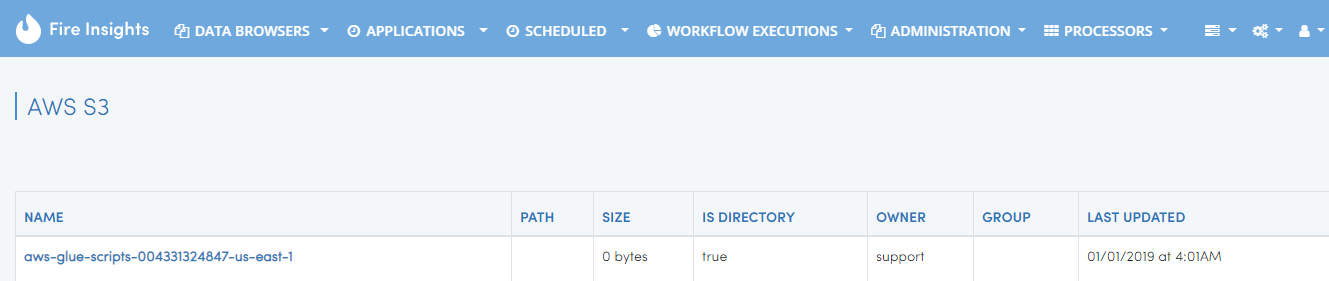
In Fire Insights, you can browse S3 under the menu Browser/AWS S3.

- Click on AWS S3 to view the files on S3.
Protecting Data Using Server Side Encryption
Data encryption settings on S3 buckets: https://docs.aws.amazon.com/AmazonS3/latest/dev/serv-side-encryption.html
REFERENCE : Creating Access Key & Secret Key
- You’ll need create a user with programmatic access by following the steps here (https://docs.aws.amazon.com/IAM/latest/UserGuide/id_users_create.html).
- Next, you’ll create an IAM policy that defines what this user has access to in your AWS account. It’s important to only grant this user minimal access within your account. See this documentation for how to create IAM policies (https://docs.aws.amazon.com/IAM/latest/UserGuide/access_policies_create.html).
- Finally, you’ll create an access key and secret key for this user (https://docs.aws.amazon.com/IAM/latest/UserGuide/id_credentials_access-keys.html#Using_CreateAccessKey).
Note It’s important to regularly rotate your access and secret keys. See this documentation for more information (https://docs.aws.amazon.com/IAM/latest/UserGuide/id_credentials_access-keys.html#rotating_access_keys_console)